How to Create and Send a Proposal in Estiggle
Build a proposal from a client, choose how prices appear, email it, and let the client sign online. A step-by-step walkthrough with screenshots of Estiggle.
Published · Updated · 5 min read
Quick answer
In Estiggle, open a new proposal from a client, add categories and items (picking saved services or writing your own), choose how much pricing detail the client sees, save, and choose Email to client. The email links to the client’s own proposal page, where they review the document and sign. When they sign, the proposal shows Signed online and you can create the invoice.
Key takeaways
- Start from the client, so their name and address are copied onto the proposal.
- Group the work into categories and add items from your saved services, or write your own.
- Choose how prices appear: just the total, a total per category, or detail on every row.
- Email to client sends a link to the client’s proposal page, where they type, draw or upload a signature.
- A signed proposal shows Signed online and offers Create invoice as the next step.
Before you start
You need two things: your company details, which appear on every proposal, and at least one client. How to set up your Estiggle workspace covers both. Saved services are optional, but they save time: a service is copied into the proposal, where you can still edit it.
The steps
Open a new proposal for the client
From the client’s page choose New proposal, or open Proposals and start a new one. The client’s name, phone, email and address appear at the top of the editor, and Change client lets you switch before you save.
A client page lists their proposals and invoices with status and amount due, and has New proposal and Schedule visit buttons. Fictional example data. Add categories and items
Choose Add category and pick one, such as Preparation or Main work, then choose Add item. Select one or more saved services and add them, or choose Write my own item to type a description. When prices show detail, each item also takes a quantity, a unit and a unit price.
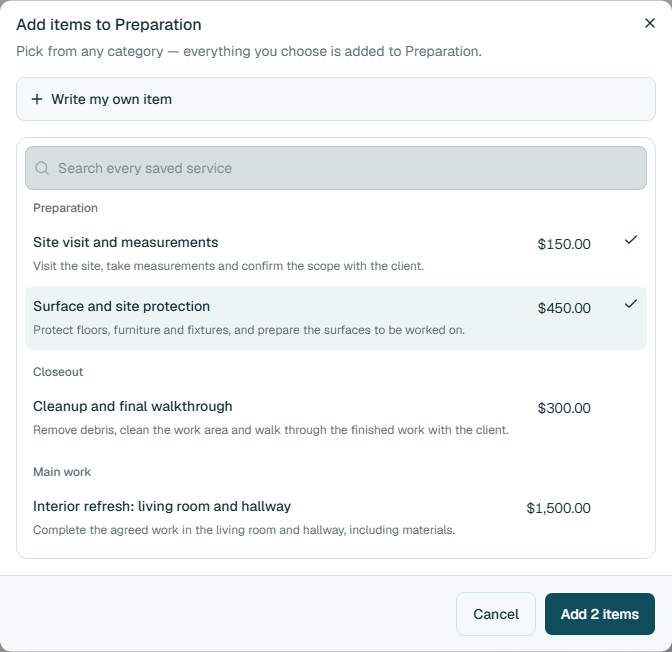
Pick saved services, or choose Write my own item. Fictional example data. Choose how prices appear
Next to Prices show, choose Change. You can show just the total, a total per category, a price on each row, quantity and price on each row, or quantity, unit, unit price and total. An example on the right shows what the client will see.
Choose how much pricing detail the client sees. The example on the right updates with your choice. Fictional example data. Set the title, dates and terms
On the Title and dates tab, give the proposal a title the client will recognize and set the proposal date and a Valid until date. The Terms & notes tab holds the text that goes with it.
Save and check the live preview
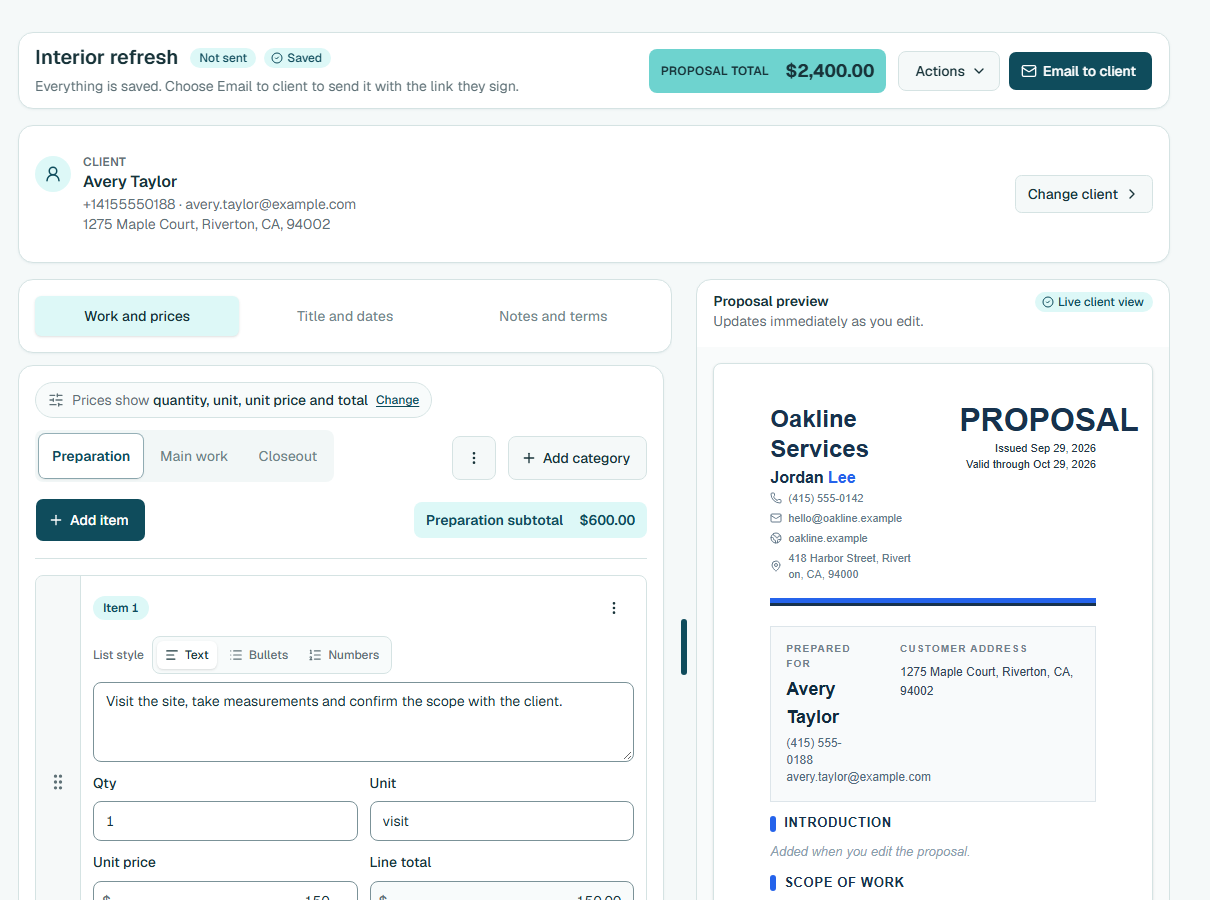
Choose Save. The proposal gets a number such as PRO-2026-0001, and the preview on the right updates as you edit, so you can read the document the way your client will.
The proposal editor, with a live preview of what the client will read. Fictional example data. Email it to the client
Choose Email to client. The dialog fills in the client’s email, a subject and a short message. Nothing is attached: the email carries a button to the client’s own proposal page. You can also copy the client link from Actions, then Manage client link, and send it yourself.
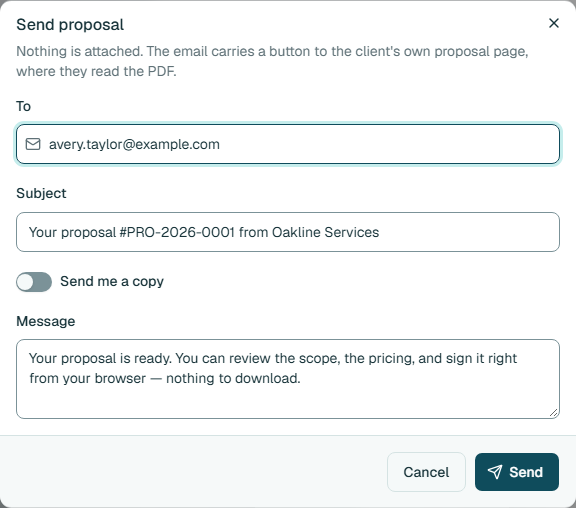
Email to client sends a button to the client's own proposal page. Fictional example data. See what the client sees
The client opens their page and reads the proposal: the work, the prices you chose to show, the total and the date it is valid through. The page also shows a Sign this proposal form.
What the client sees: the proposal, the total and a form to sign. Fictional example data. The client signs
The client confirms their name, adds a signature by typing it, drawing it or uploading a photo, ticks the acceptance box and chooses Sign and accept proposal. No account and nothing to download.
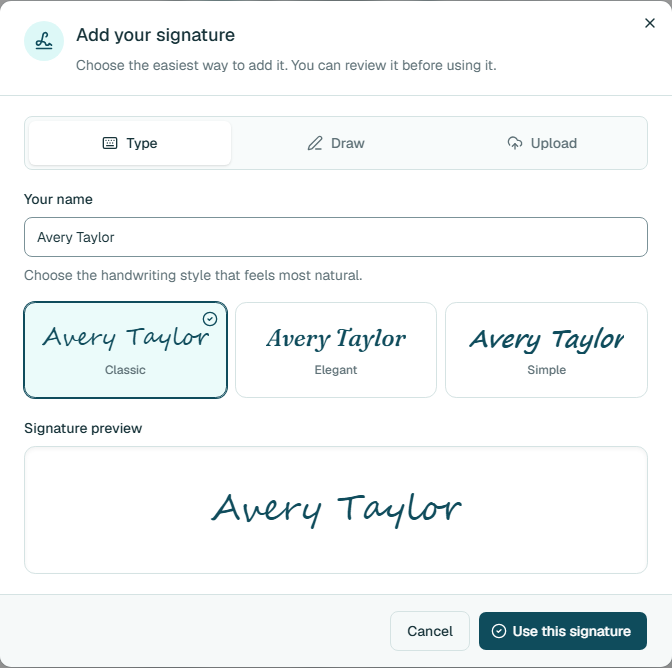
The client can type, draw or upload a signature. Fictional example data. Move on when it is signed
The proposal now shows Signed online, with a Signed PDF and a Create invoice button. If a client agrees outside Estiggle, use Actions, then Mark as approved instead.
A signed proposal offers Create invoice as the next step. Fictional example data.
Good to know
- Editing after approval. If you change a proposal that is already approved, Estiggle asks whether to keep the approval or remove it, so a signed document is not changed by accident.
- Photos. You can add photos to an item to show the starting condition of the work, up to four per item.
- Templates. Actions, then Change template, changes the wording and look of the proposal without losing your work and prices.
- Notifications. In Settings, Notifications, you choose how your business is told when a client opens or accepts a document.
- Declined proposals. A proposal marked declined can no longer be edited.
Make it easy to approve
The software handles the paperwork. What wins the job is what the proposal says. The proposal checklist lists what to include, and estimate vs. proposal vs. quote helps you decide what to send. When the client signs, invoice the job in Estiggle.
Frequently asked questions
Does my client need an account to sign?
No. The client opens the link from the email, confirms their name, adds a signature and accepts. There is nothing to download and no account to create.
Can I send the proposal link myself instead of emailing it?
Yes. Open Actions, choose Manage client link and copy it. Copying the link does not send anything, so you decide when and how the client receives it.
Can I see whether the client opened the proposal?
The client link shows a status such as Ready to send, Viewed or Signed, and Estiggle can notify you when a client opens or accepts a document. You choose how in Settings, Notifications.
Can I show only the total price?
Yes. In How prices appear, choose Just the total. You can also show a total per category or detail on every row.
What if I need to change a proposal after sending it?
Edit it and save. If it was already approved, Estiggle asks whether to keep or remove the approval. You can also replace the client link, which stops the old link from working.
Can I approve a proposal without a signature?
Yes. If the client agrees by phone or in person, open Actions and choose Mark as approved. You can then create the invoice.