How to Set Up Your Estiggle Workspace
Create your account and finish setup: company details, your first client and your first proposal, plus optional saved services. A step-by-step guide with screenshots.
Published · Updated · 3 min read
Quick answer
Create an account with your email and a password, then follow the Set up your workspace checklist on the dashboard: add your company details, save your first client and create your first proposal. Saving the services you offer is optional. Each step opens the right screen, and the checklist disappears when the three required steps are done.
Key takeaways
- Registration needs only an email and a password. You add your business details after you sign in.
- Company details, including your logo and colors, appear on every proposal and invoice.
- Saved services are copied into proposals and invoices, where you can still edit them.
- A client needs only a name to start. Add contact details and addresses whenever you have them.
- Choose which payment methods appear when you record a payment.
The steps
Create your account
Choose Get started on the Estiggle home page, enter your email address and a password, and choose Create account. You land on the dashboard, where Set up your workspace lists the four steps that follow.
A new workspace starts with a four-step checklist on the dashboard. Fictional example data. Add your company details
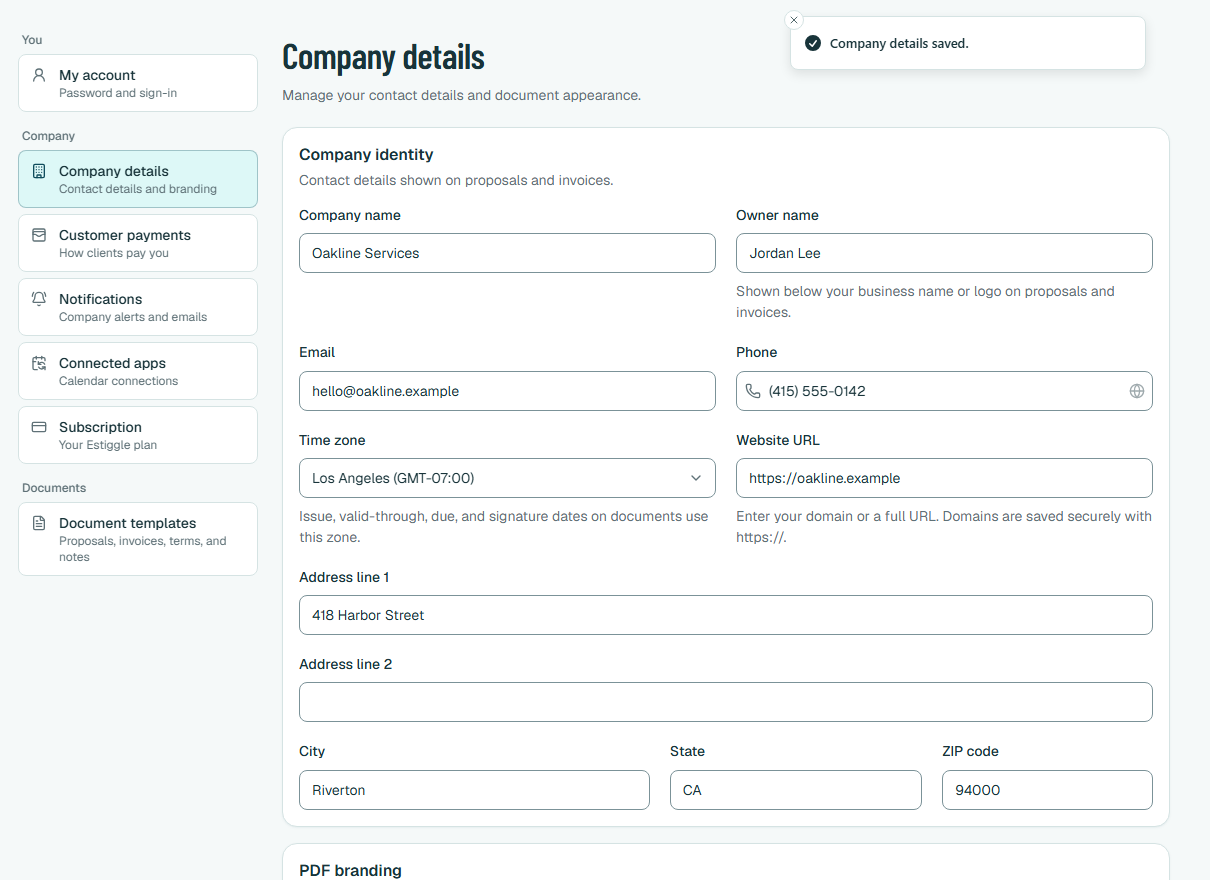
Open Settings, then Company details. Enter your company name, owner name, email, phone, time zone, website and address. They appear on your proposals and invoices. PDF branding sets the colors used on new documents, and Logo & signature lets you upload your logo and add an owner signature to new proposals.
Company details appear on every proposal and invoice. Fictional example data. List your services (optional)
You can skip this and add items while you write a proposal, or save the work you quote most often now. Open Services and choose New service. Give it a name, a category, a description the client will read, and a default quantity, unit and price. Saved services are copied into proposals and invoices, where they can still be edited. The Categories tab groups your services the same way work is grouped in a proposal.
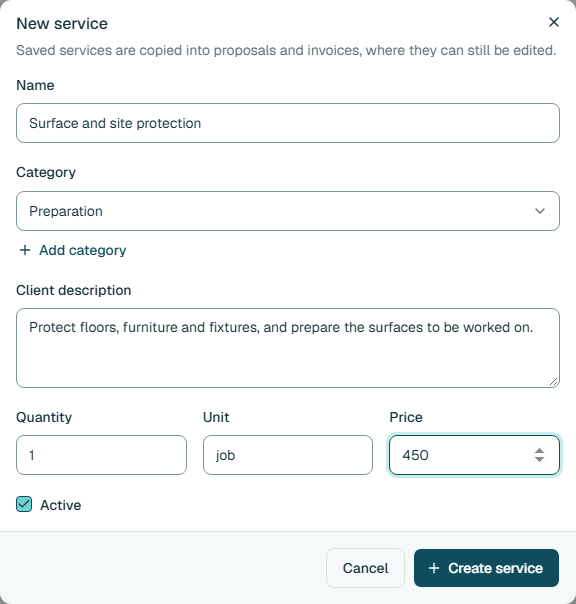
A saved service is copied into proposals and invoices, where it can still be edited. Fictional example data. Review your saved services
The Services list shows each service with its category and its default quantity and price. Search it, filter by category, or switch a service to inactive instead of deleting it.
The Services list, with search, a category filter and an Active status. Fictional example data. Save your first client
Open Clients and choose Add client. Only a name is required. Add a phone, an email and an address now, or later from the client’s page. A lead becomes Active on its own when they approve a proposal.
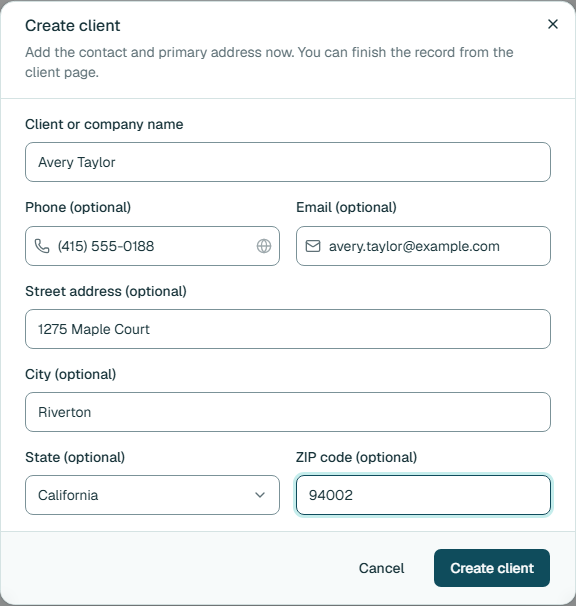
Only a name is required. Contact details and addresses can be added later. Fictional example data. Choose how clients can pay you
Open Settings, then Customer payments. Turn on the payment methods you accept, rename or reorder them, or add your own. These choices appear when you record a payment and on new client documents.
Accepted payment methods appear when you record a payment and on new client documents. Fictional example data. Create your first proposal
Back on the dashboard, the last step opens a new proposal. How to create and send a proposal in Estiggle walks through it, from the first item to the client’s signature.
What to do next
- Send your first proposal and let the client sign online.
- Invoice the job when the work is done and record each payment.
- Schedule visits and jobs on the agenda.
- Track crew hours and pay if you work with a team.
Frequently asked questions
Do I need to finish every setup step before I start?
No. The checklist is a guide. You can open any screen at any time, and the checklist disappears once the three required steps are complete: company details, your first client and your first proposal.
Where do I change my company details later?
Open Settings, then Company details. New proposals and invoices use the updated details.
How much does Estiggle cost, and is there a free trial?
See Plans & free trial on the home page for the current prices and the length of the free trial. No credit card is needed to create your account.
Can I use Estiggle on my phone?
Yes. Estiggle works from a phone or a computer, so you can create documents, check the agenda and review a client from the job site.