How to Schedule Jobs and Visits in Estiggle
Plan estimates, site visits and jobs on the Estiggle agenda, link them to clients, keep reminders on a task board, and optionally sync with Google Calendar.
Published · Updated · 3 min read
Quick answer
In Estiggle, open Agenda, choose New appointment, and enter a title, a date, optional start and end times and the client. The Calendar view shows your appointments by month, week or day, and the Tasks view keeps reminders on a To do, In progress and Done board. You can optionally connect Google Calendar from Settings, then Connected apps.
Key takeaways
- Use appointments for anything with a date: estimates, site visits, jobs and reminders.
- Link an appointment to a client so its context travels with it.
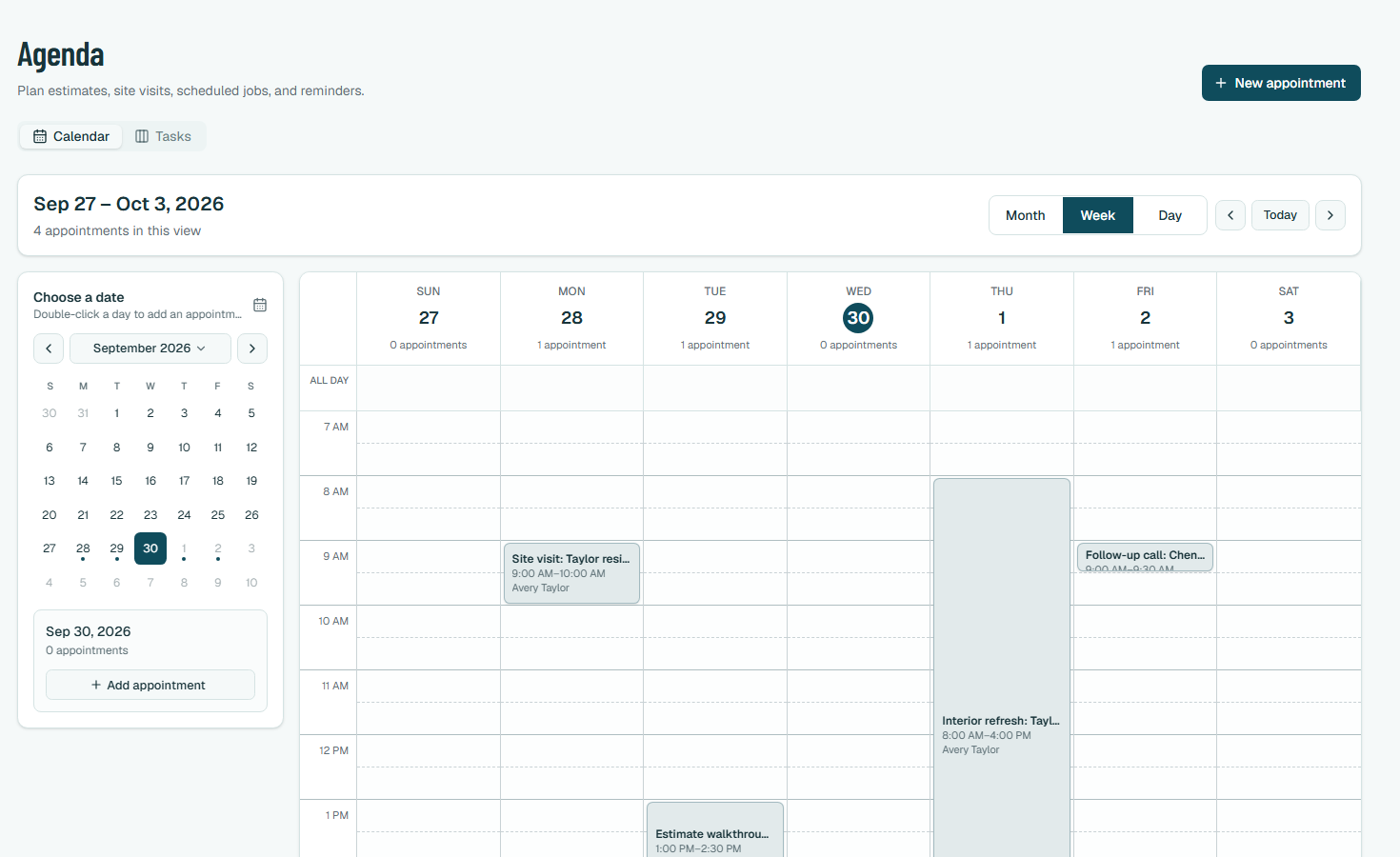
- Switch between Month, Week and Day to see your load. The mini calendar jumps to any date.
- Use the Tasks board for work without a time, such as following up on an estimate.
- Google Calendar sync is optional and set up in Settings, then Connected apps.
The steps
Open the agenda
Open Agenda. Calendar shows your appointments by Month, Week or Day, with a date picker on the left. Double-click a day to add an appointment there. The header counts the appointments in the view.
The agenda in week view, with a mini calendar and Month, Week and Day views. Fictional example data. Add an appointment
Choose New appointment. Enter a title and a date. Add a start and an end time for the week and day views, or leave both blank for an all-day reminder. Link a client if it helps and add notes for whoever opens it next.
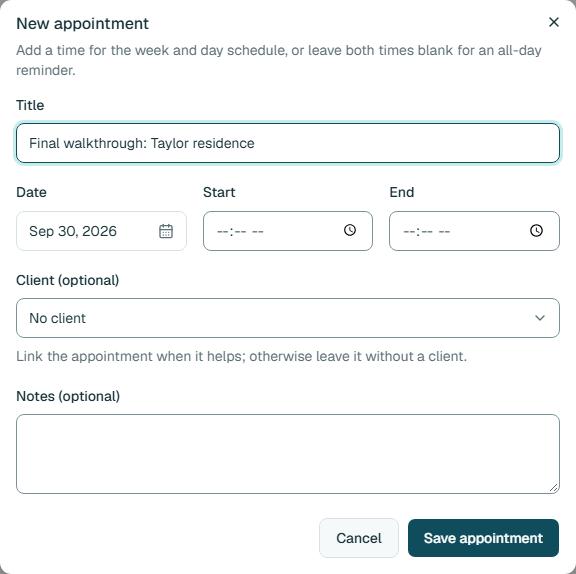
An appointment has a title, a date, optional times, an optional client and notes. Fictional example data. Schedule from the client
A client’s page has a New appointment button, which starts an appointment for that client. The client’s proposals and invoices are on the same page, so the whole job is in one place.
A client page lists their proposals and invoices with status and amount due, and has New proposal and Schedule visit buttons. Fictional example data. Track reminders as tasks
Switch to Tasks for work that has no time. Create a task with a title, notes and an optional due date, then move it between To do, In progress and Done by dragging it or from its status menu.
Optionally connect Google Calendar
In Settings, open Connected apps and choose Connect on Google Calendar. Appointments you create in Estiggle then appear in your Google Calendar, and schedule changes made there update your agenda.
A simple scheduling routine
- Book the walkthrough as an appointment with the client linked, so you can find it from the client’s page.
- When the proposal is signed, add the work dates as appointments. A signed proposal does not put work on the calendar by itself.
- Put follow-ups that have no time on the Tasks board, with a due date.
- Check the Week view each morning, and the dashboard’s Next appointments list for what is coming up.
From proposal to invoice shows where scheduling fits between the proposal and the invoice, and how to track crew hours and pay covers the days the work happens.
Frequently asked questions
Do I have to use Google Calendar?
No. The agenda works on its own. Connecting Google Calendar is optional and set up in Settings, then Connected apps.
Can I schedule from my phone?
Estiggle works from a phone or a computer, so the agenda is available wherever you can open it in a browser.
Can an appointment last all day?
Yes. Leave the start and end times blank and the appointment becomes an all-day reminder.
Does a signed proposal schedule the job automatically?
No. Add the work date as an appointment so it appears on the agenda and in the dashboard’s Next appointments list.
What is the difference between an appointment and a task?
An appointment has a date, and usually a time and a client. A task is something to do, kept on a To do, In progress and Done board, with an optional due date.