From Proposal to Invoice: A Contractor Workflow
A practical contractor workflow that keeps client details, proposals, job schedules and invoices connected from the first call to the final payment.
Published · Updated · 4 min read
Quick answer
A practical contractor workflow has five connected steps: save the client and the job address, write the proposal, schedule the work, do the job, and invoice what was done. At each handoff, confirm the details the next step depends on instead of re-entering them from memory.
Key takeaways
- Four records, in order: client, proposal, schedule, invoice.
- Create each record once and carry it forward. Retyping is where errors enter.
- An accepted proposal is not a calendar entry. Schedule the next action explicitly.
- Invoice what was actually done, against the approved scope and any recorded changes.
- Use the handoff table below to check each step before moving on.
The four connected records
Every job passes through the same records. When each one starts from the one before it, nothing has to be rebuilt from memory or from an old email thread.
What to confirm at each handoff
| Step | Confirm before moving on | Where it lives in Estiggle |
|---|---|---|
| Client to proposal | Correct name, phone and email, the job address (service vs. billing), scope, exclusions, price and terms, and which address appears on the document | Clients and saved addresses; Proposals |
| Proposal to schedule | The customer has accepted; the next visit or start date is chosen and someone owns it | Agenda, with optional Google Calendar sync |
| Schedule to work | Crew, hours, and any access or material needs | Crew attendance and hours |
| Work to invoice | Final work matches the approved scope and recorded changes; payments so far are known | Invoices with recorded payments |
1. Capture the client once, then keep it current
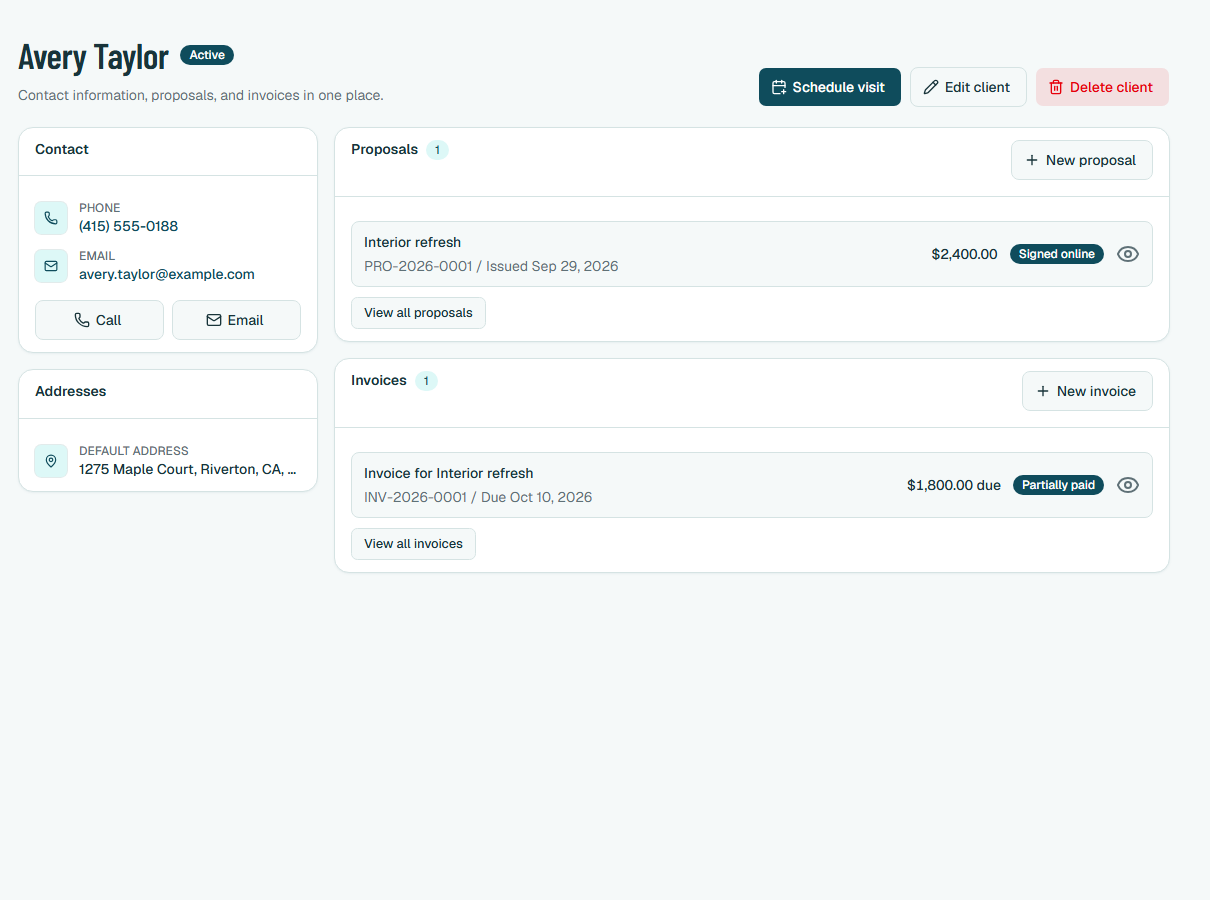
A useful client record has the contact details your team needs, the job address and a short note about the request. Before you create a proposal, check the name and address that should appear on the document. The person doing the work with you and the person who receives the invoice may not be the same, so make those roles clear. Client records for contractors lists what to keep, and setting up your workspace shows where to add a client.
2. Turn the request into defined work
Open the client's record, then draft a proposal with scope, assumptions and next steps. When a client asks for a change, update the working document on purpose, instead of leaving a decision in an email thread that the rest of the team cannot see.
The proposal checklist covers what to include before you send it, and how to create and send a proposal in Estiggle shows each step.
3. Schedule the next real action
A proposal alone does not put work on a calendar. Add the visit, the work date or the reminder that moves the job forward, and give the event a name anyone on the team would understand.
- Who is responsible for the next action?
- What needs to happen before it?
- Which client and proposal does it belong to?
- What should happen if the date changes?
How to schedule jobs and visits in Estiggle and how to track crew hours and pay cover the days the work happens.
4. Invoice against what actually happened
Before you issue an invoice, confirm the customer, the final work and the agreed terms. If the scope changed, make sure the invoice reflects the completed work and not an old draft. Keep the customer-facing invoice easy to review, and keep the proposal it came from for follow-up.
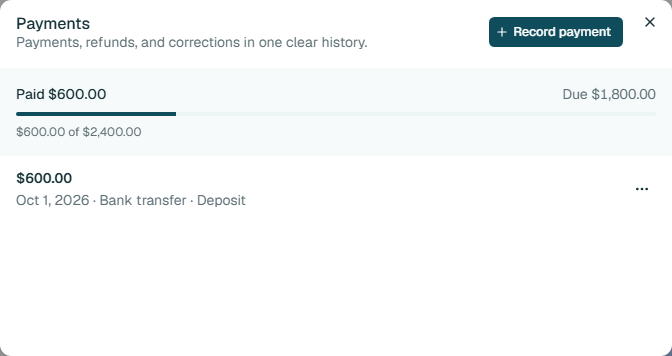
How to invoice a job and record payments in Estiggle goes through the invoice, the deposit and the final balance.
Frequently asked questions
What is the best order for a contractor’s paperwork?
Client, proposal, schedule, then invoice. Each step should start from information already recorded in the one before it.
Should I schedule a job before the proposal is signed?
You can schedule an estimate visit or a walkthrough earlier, but hold the work dates until the customer accepts, unless your terms say otherwise.
How do I avoid retyping client details?
Keep one client record with saved addresses and create proposals and invoices from it, so names and addresses are copied instead of retyped. In Estiggle, a proposal or invoice keeps the address as it was when the document was created, so later edits to the client record do not change older paperwork.
Can Estiggle work with Google Calendar?
Yes. You can connect your company calendar from Settings, then Connected apps. Appointments created in Estiggle appear in Google Calendar, and schedule changes made there update your agenda.