How to Track Crew Hours and Pay in Estiggle
Add your crew, mark who worked each day, split hours across job sites, and see what each person is owed for any pay period. A step-by-step guide with screenshots.
Published · Updated · 3 min read
Quick answer
In Estiggle, open Crew and add each worker with a role and a pay arrangement. Each day, open Attendance, mark who worked and split their hours across job sites. Then open Time & pay, choose the dates you are paying for, and see the hours and estimated pay for each person, grouped by worker, day or job site.
Key takeaways
- Add each worker once, with a role and a pay arrangement of hourly, daily, weekly or monthly.
- Job sites are optional. Use them when it helps to group hours by place.
- Attendance is one screen per day: tick who worked and enter their hours, one line per person.
- Time & pay totals hours and estimated pay for any date range, such as this week or last month.
- When someone leaves, archive them. They keep their time history and disappear from new attendance.
The steps
Add your crew
Open Crew, then People, and choose Add worker. Enter a name, a role such as Crew lead or Helper, a start date and how the person is normally paid. The directory lists everyone with their rate, and you can search by name, role, phone or email.
Each worker has a role and a pay arrangement. Fictional example data. Add job sites, if they help
Job sites are optional. Add one only when tracking where the crew worked is useful. A job site has a name, an optional client and a location. Clients and proposals do not depend on these records.
Take attendance for the day
Open Attendance and pick the day. Tick who worked and enter their hours. To split a day across two places, add another line for that person and choose a different job site. Choose Save changes when you are done, and Estiggle asks before you leave with unsaved changes.
Mark who worked and split their hours across job sites, one line per person. Fictional example data. See what each person is owed
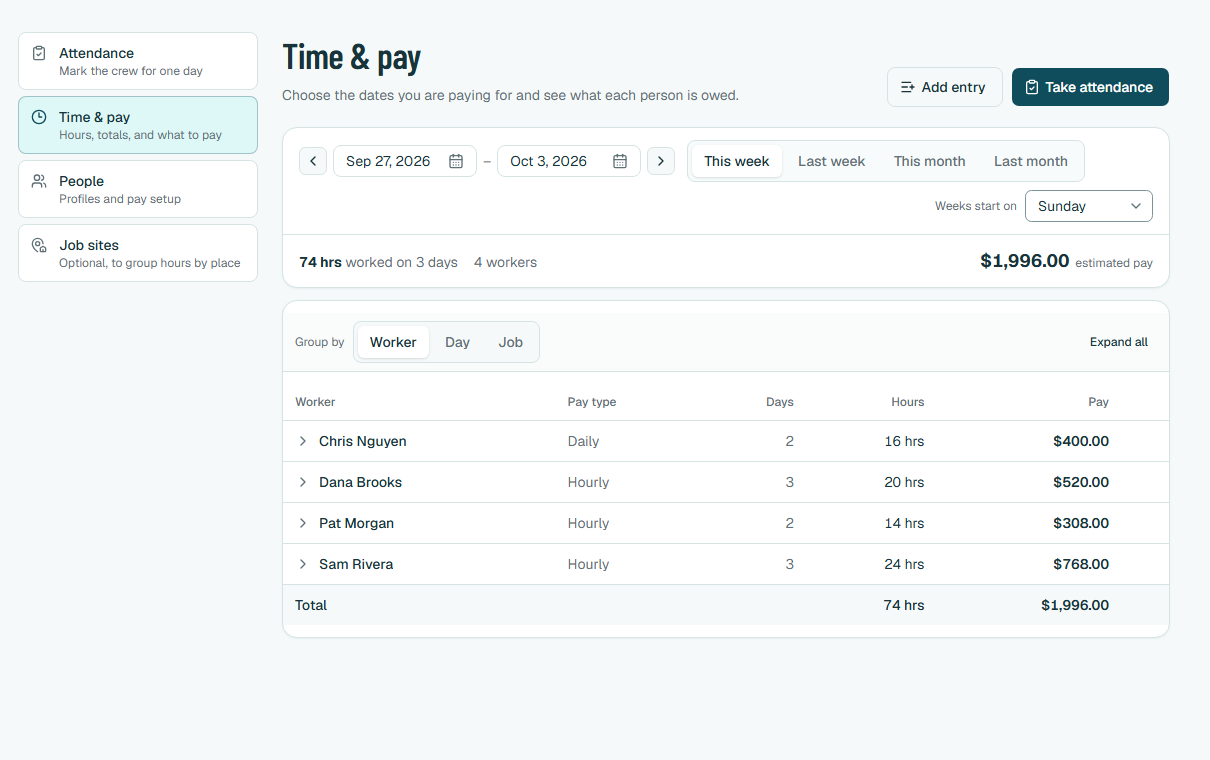
Open Time & pay and choose the dates you are paying for, or pick This week, Last week, This month or Last month. The summary shows the hours worked, the number of workers and the estimated pay. Group the table by worker, by day or by job site.
Time & pay totals hours and estimated pay for the dates you choose. Fictional example data. Add a single entry by hand
For a one-off, choose Add entry and record the worker, the date, the job site and the hours without taking attendance for the whole crew.
How estimated pay is worked out
Each worker’s pay arrangement sets their rate: an hourly rate multiplied by the hours, or a daily rate for each day worked. In the example above, a worker paid $200 a day for two days shows $400.00, and a worker paid $26 an hour for 20 hours shows $520.00. Time & pay presents this as estimated pay, a record to pay from, so keep using your usual way of paying your crew.
Hours recorded against job sites also show where the time went. That is useful when you compare a job’s labor with what you charged in the proposal.
Frequently asked questions
Does Estiggle run payroll?
Time & pay shows hours and estimated pay from each person’s pay arrangement, so you know what each person is owed for the dates you choose. It is a record to pay from, so keep using your usual way of paying your crew.
Can I split one person’s day across two jobs?
Yes. In Attendance, add another line for the person and choose a different job site. Their hours for the day are the total of their lines.
Can I record hours for a past day?
Yes. Pick the date in Attendance, or use the previous-day button, or choose Add entry in Time & pay.
Do I need job sites?
No. Job sites are optional. Add them only when it helps to see where the crew worked.
What happens when someone leaves?
Archive the worker. Archived workers keep their time history but no longer appear in new attendance.