How to Invoice a Job and Record Payments in Estiggle
Create an invoice from a signed proposal, save it, email it to the client, and record deposits and payments so the balance is always clear. A step-by-step guide with screenshots.
Published · Updated · 4 min read
Quick answer
In Estiggle, open the signed proposal and choose Create invoice. Review the work, dates and totals, choose Save to assign its number, then choose Email to client when you want to send it. As money arrives, open Payments and record each payment with its amount, date and method. The invoice then shows what has been paid and the balance still due.
Key takeaways
- Create the invoice from the signed proposal, so the client, address and work carry over.
- Save assigns the invoice number without sending an email. Email to client appears once the invoice is saved and ready to share.
- Record deposits and payments in Payments. Each one keeps its date, method and reference.
- The invoice and the client page show what is paid and what is due, with a status such as Partially paid.
- The dashboard flags overdue invoices and approved work that has no invoice yet.
The steps
Create the invoice from the signed proposal
Open the proposal and choose Create invoice. The new invoice carries the client, the address and the work, so nothing is retyped. If the proposal is not signed yet, create and send it first.
A signed proposal offers Create invoice as the next step. Fictional example data. Review the work, dates and totals
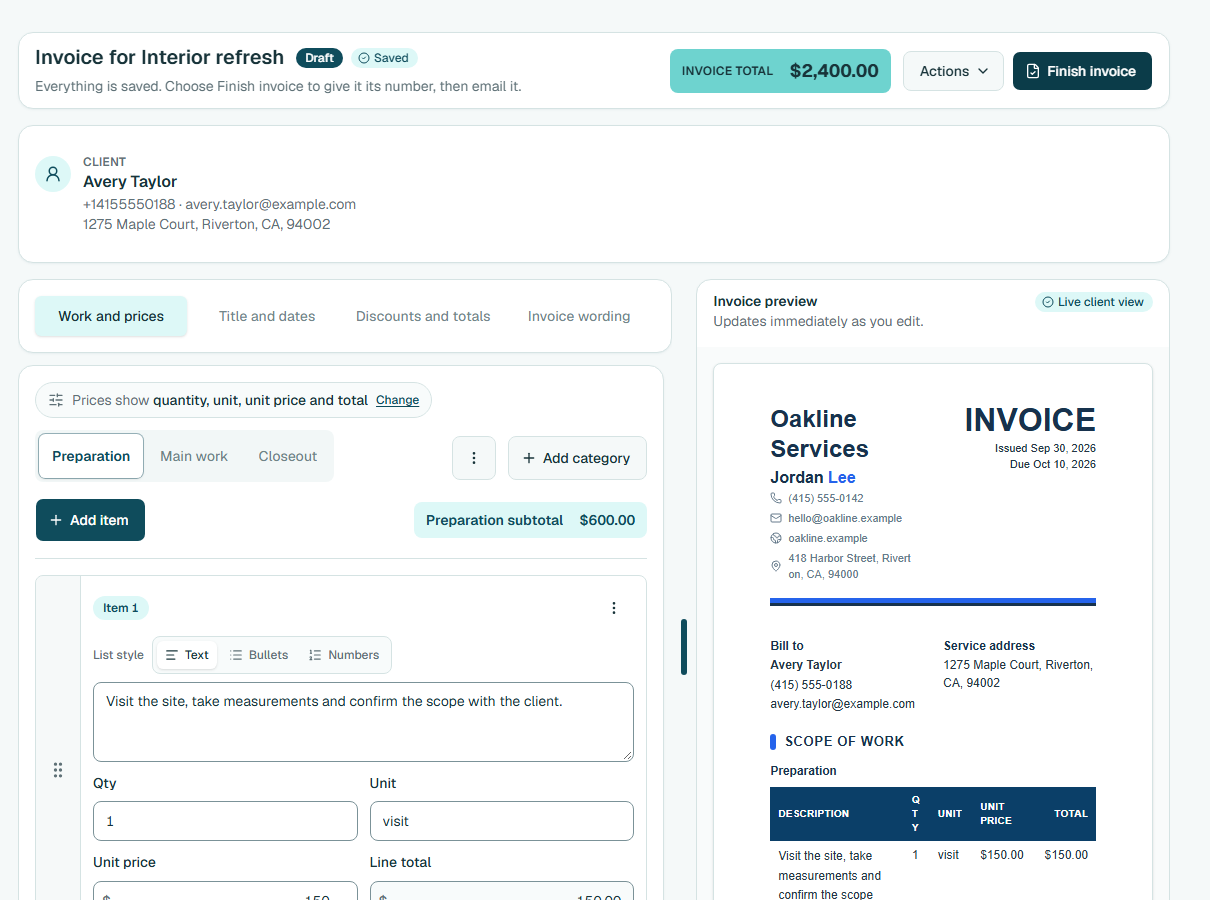
The draft has four tabs: Work and prices, Title and dates, Discounts and totals, and Terms & notes. On Title and dates, set the invoice date and the Payment due date, and add a tax rate if you charge tax. Choose Save. The preview on the right updates as you edit.
The invoice draft carries the client and the work over from the proposal. Fictional example data. Save and send it
Choose Save to give the invoice its number, such as INV-2026-0001. Then choose Email to client and send the message, get its client link, or use Actions, Open PDF to print it. For unfinished work, Actions, Save draft keeps it without assigning a number.
Record a payment
Choose Payments, then Record payment. Enter the amount, or choose Use full amount, then the date, the payment method and an optional reference such as Deposit. Record a payment when the client pays by cash, check, Zelle or another method: it is for money you already received outside the app.
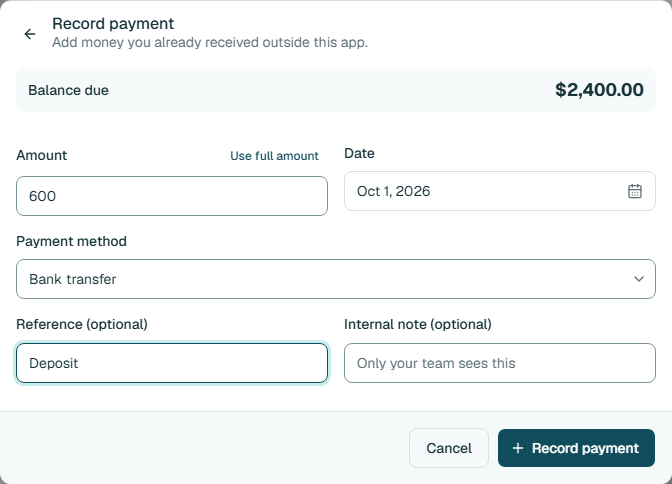
Record a payment with its amount, date, method and reference. Fictional example data. Watch the balance
The payment history shows what has been paid and what is still due. The invoice status moves from Unpaid to Partially paid and then Paid, and each payment keeps its date, method and reference.
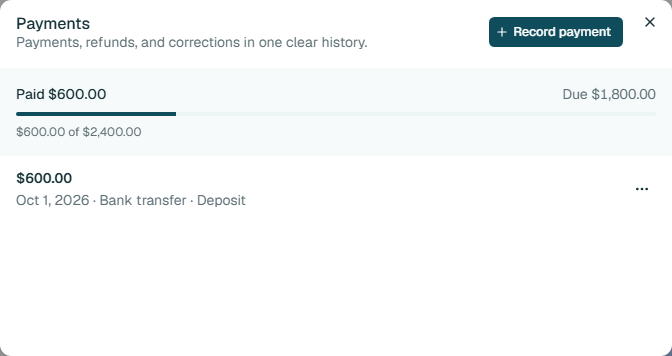
The payment history shows what has been paid and what is still due. Fictional example data. See the whole job on the client’s page
The client’s page lists their proposals and invoices with their status and the amount due, so you can see where the job stands at a glance.
A client page lists their proposals and invoices with status and amount due, and has New proposal and Schedule visit buttons. Fictional example data.
Choose the payment methods you accept
The methods in the Record payment list come from Settings, Customer payments. There you can turn Cash, Bank transfer and Card on or off, rename them, reorder them or add your own. Other is always available. These choices appear when you record a payment and on new client documents.
Keep on top of unpaid work
On the dashboard, Needs attention lists late payments, tasks that have fallen due, approved work that has no invoice yet, proposals about to expire, and proposals that have gone quiet. Each row opens the record you need, so an approved job never waits for an invoice without you noticing.
Before you bill, it helps to agree how: how to write a proposal that gets approved explains how to state payment terms before the client signs.
Frequently asked questions
When does an invoice get its number?
Choose Save to save the invoice and assign its number, such as INV-2026-0001. Saving does not send an email, and later edits keep the same number. Actions, Save draft keeps unfinished work without a number.
How do I record a deposit?
Open the invoice, choose Payments, then Record payment. Enter the deposit amount, choose a method and add a reference such as Deposit. The invoice shows the deposit as paid and the rest as due.
Can my client see the invoice?
Yes. After you save the invoice you can email it to the client, or copy the client link from Actions. The client opens it in a browser.
Can I change the payment methods that appear?
Yes. Open Settings, then Customer payments. Turn methods on or off, rename them, reorder them or add your own.
What payments does Estiggle record?
The payments you record are for money you receive outside the app, such as cash, a check, a bank transfer or a card. Each one is saved with its date, method and reference, and the invoice shows the balance.